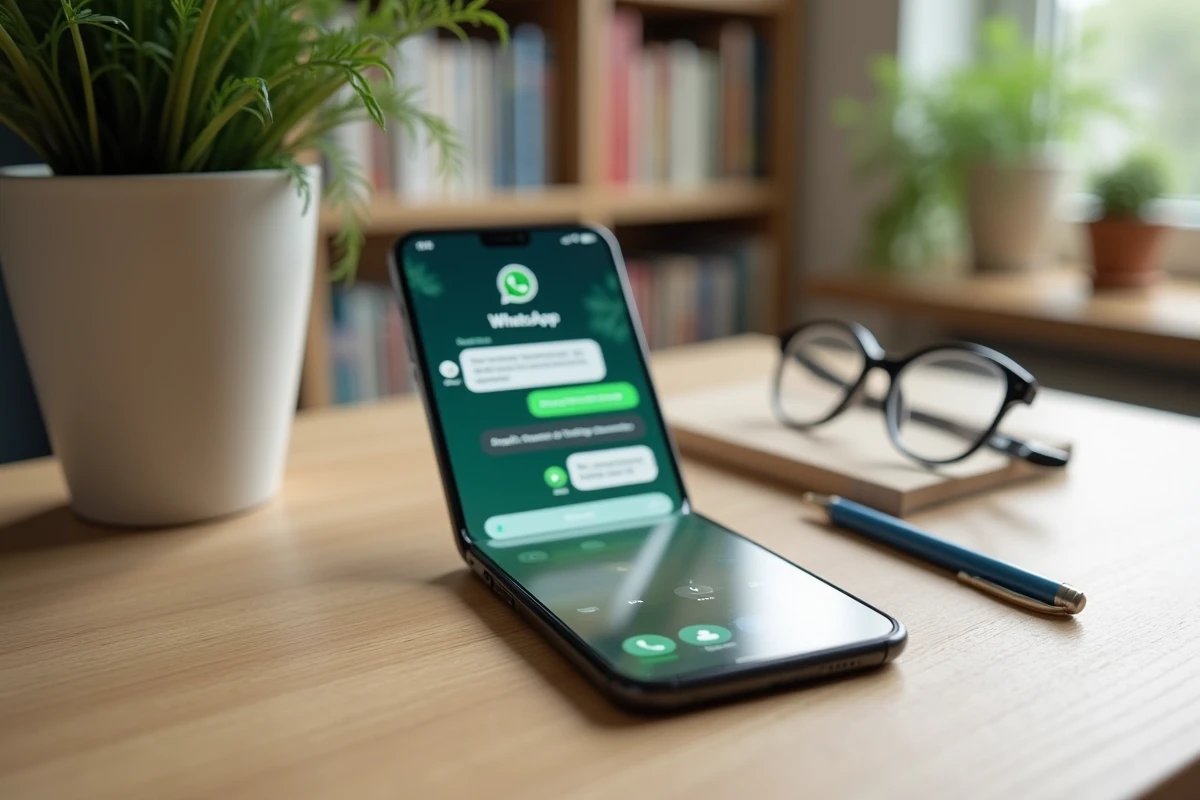
WhatsApp works only on devices equipped with a recent Android system or iOS. Doro phones, designed for seniors, are divided between flip models without a compatible operating system and Android smartphones capable of accessing the Google Play Store. This technical distinction determines whether the messaging app can be installed or not.
Android Operating System: The Criterion that Separates Compatible Doro from Others
The Doro range includes two very different families of products. On one side, classic mobile phones (often flip or with large buttons) operate with a simplified proprietary system. These devices allow calling and sending SMS, but they do not support WhatsApp.
On the other side, Doro offers Android smartphones with a touchscreen and access to the Google Play Store. Only these models allow downloading and using WhatsApp. To quickly check the compatibility of a device, simply look for the Play Store icon in the main menu.
The minimum version of Android required by WhatsApp is regularly updated. A Doro smartphone running an outdated Android version may no longer receive app updates or may not be able to install it at all. Before making any purchase, checking the Android version in the device settings (under “About Phone”) remains the most reliable precaution. A detailed guide on Doro phones compatible with WhatsApp clarifies the models in question.
Doro Models Compatible with WhatsApp: Android Smartphones from the Range
Among the Doro smartphones running Android, several models frequently come up. The Doro 8050, Doro 8080, and Doro 8100 are models equipped with a multi-inch touchscreen, a simplified interface, and the Play Store pre-installed.
These devices share features designed for seniors: enlarged font size, emergency button on the back, large icons on the home screen. The Doro interface does not deeply alter the functioning of Android. It overlays a clean graphical layer that facilitates navigation without blocking access to standard applications.
Button phones like the Doro 6040, Doro 6060, or Doro 7010 are not included in the list of compatible devices. Their system does not manage third-party applications or instant messaging beyond SMS.
- Doro 8050, 8080, 8100: Android smartphones, compatible with WhatsApp via the Google Play Store
- Doro 6040, 6060, 7010: classic mobile phones, no support for Android applications
- Doro 8035: entry-level smartphone, check the Android version before installation
Installing WhatsApp on a Doro Smartphone: Step-by-Step Guide
The installation follows exactly the same process as on any Android smartphone. The Doro interface simplifies the display, but the steps remain the same.
Open the Google Play Store from the home screen or the app menu. Type “WhatsApp” in the search bar. Select the official app (publisher: WhatsApp LLC) and tap “Install”. The installation takes a few minutes depending on the internet connection.
Upon first launch, WhatsApp asks for a mobile phone number. A verification code is sent via SMS, which is automatically detected in most cases. The app then offers to import contacts saved in the phone’s directory. Contacts who already use WhatsApp appear directly in the conversation list.
Permissions and Settings to Check
WhatsApp requests access to contacts, the camera, the microphone, and storage. Each permission corresponds to a specific function: sending voice messages, making video calls, sharing photos. Denying access to contacts prevents the app from finding already registered correspondents.
On Doro smartphones, notifications appear in the top bar of the screen. If they do not display, check in Settings > Apps > WhatsApp that notifications are enabled.
Daily Use of WhatsApp with the Doro Interface
The simplified interface of Doro smartphones displays applications as large icons. WhatsApp appears as an additional shortcut on the main screen or in the app drawer. The text size in the app follows the general settings of the phone: increasing the font size in the display settings also enlarges WhatsApp messages.

To send a message, open WhatsApp, select a contact, type the text, and press the send button. Voice and video calls are initiated from the icons at the top of each conversation. The quality depends on the Wi-Fi or mobile data connection, not the phone model.
- Increase text size: Settings > Display > Font size, the change also applies in WhatsApp
- Send a photo: tap the paperclip icon in the conversation, then choose “Gallery” or “Camera”
- Add a contact manually: save the number in the phone’s directory, it will appear in WhatsApp after refreshing
- Save battery: disable automatic media download in WhatsApp Settings > Storage and data
Security and Privacy for Seniors
WhatsApp encrypts messages end-to-end by default. Seniors exposed to messaging scams benefit from enabling two-step verification in the app’s security settings. This feature adds a personal PIN code for any new login to the account.
Blocking an unwanted contact is done by opening the conversation, accessing the contact options (three dots in the top right), and selecting “Block”. Messages from unknown numbers can also be reported directly from the conversation.
When WhatsApp Does Not Install: Common Causes on a Doro
A failed installation often stems from insufficient storage space. Entry-level Doro smartphones have limited internal memory. Deleting photos or unused apps frees up space.
The second common cause is an outdated Android version. If the Play Store indicates that the device is not compatible, no manipulation will reliably force the installation. In this case, the phone simply cannot run WhatsApp.
A recent Android Doro smartphone with sufficient storage and an active internet connection generally poses no installation issues. Most difficulties encountered by senior users arise from initial setup (Google account, Wi-Fi connection) rather than the app itself.